

Distributional’s adaptive analytics platform empowers AI product teams to have confidence in AI behavior—the interplay and correlations between users, context, tools, models, and metrics. Distributional’s product (DBNL) is composed of three components: platform, data pipeline, and analytics workflow. We designed our platform to fit seamlessly with your existing AI stack so there is minimal overhead to implementing our product, and no lock-in when using it.
Part of this approach to our platform includes investing in integrations to make our product fit even more cleanly with partner products. This approach is especially important in the context of our Data Connections that make it easier for Distributional to ingest semantically relevant data so our data pipeline can produce compelling insights that guide the analytics workflow.
NVIDIA NeMo Agent Toolkit and DBNL integration
This issue crops up frequently in the context of agents. Agents typically have complex workflows with many tool calls, tasks, data sources, and decision points. This complexity can be hard to parse, but the richness of this data presents an opportunity for more useful and insightful analytics—especially as use of these agents scales.
NVIDIA NeMo Agent Toolkit is a collection of tools that make it easy to build an agent regardless of which agent framework you use (or even if you roll your own). It includes integrations with popular tools like MCP and Google’s ADK, as well as Function Groups and Automatic Hyperparameter Tuning. It also powers observability to provide visibility into traces as usage scales in production. Consistent with the full complement of NVIDIA NeMo tools, the NeMo Agent Toolkit is designed to help AI product teams efficiently design, optimize, and scale their agents on GPUs.
This is why Distributional built an integration with NeMo Agent Toolkit to make it easy for any AI product team to ingest NeMo Agent Toolkit traces in DBNL, reducing time required to get interesting analysis from DBNL on agent behavior. You can learn more about this integration here (will need to install the NeMo Agent Toolkit off of the develop branch): https://github.com/NVIDIA/NeMo-Agent-Toolkit/blob/develop/docs/source/run-workflows/observe/observe-workflow-with-dbnl.md
Steps to use the DBNL and NVIDIA NeMo Agent Toolkit integration
Step 1: Install DBNL
Visit https://docs.dbnl.com/get-started/quickstart to install DBNL.
Step 2: Create a project
Create a new Trace Ingestion project in DBNL. To create a new project in DBNL:
- Navigate to your DBNL deployment (e.g. http://localhost:8080/)
- Go to Projects > + New Project
- Name your project nat-calculator
- Add a LLM connection to your project
- Select Trace Ingestion as the project Data Source
- Click on Generate API Token and note down the generated API Token
- Note down the Project ID for the project
Step 3: Configure your environment
Set the following environment variables in your terminal:
# DBNL_API_URL should point to your deployment API URL (e.g. http://localhost:8080/api)
export DBNL_API_URL=<your_api_url>
export DBNL_API_TOKEN=<your_api_token>
export DBNL_PROJECT_ID=<your_project_id>
Step 4: Install the NeMo Agent Toolkit OpenTelemetry subpackages
# Install specific telemetry extras required for DBNL
uv pip install -e '.[opentelemetry]'
Step 5: Modify NeMo Agent Toolkit workflow configuration
Update your workflow configuration file to include the telemetry settings.
Example configuration:
general:
  telemetry:
    tracing:
      dbnl:
        _type: dbnl
Step 6: Run the workflow
From the root directory of the NeMo Agent Toolkit library, install dependencies and run the pre-configured simple_calculator_observability example.
Example:
# Install the workflow and plugins
uv pip install -e examples/observability/simple_calculator_observability/

# Run the workflow with DBNL telemetry settings
# Note: you may have to update configuration settings based on your DBNL deployment
nat run --config_file examples/observability/simple_calculator_observability/configs/config-dbnl.yml --input "What is 1*2?"
As the workflow runs, telemetry data will start showing up in DBNL.
Step 7: Analyze traces in DBNL
To analyze traces in DBNL:
- Navigate to your DBNL deployment (e.g. http://localhost:8080/)
- Go to Projects > nat-calculator
For additional help, see the DBNL docs.
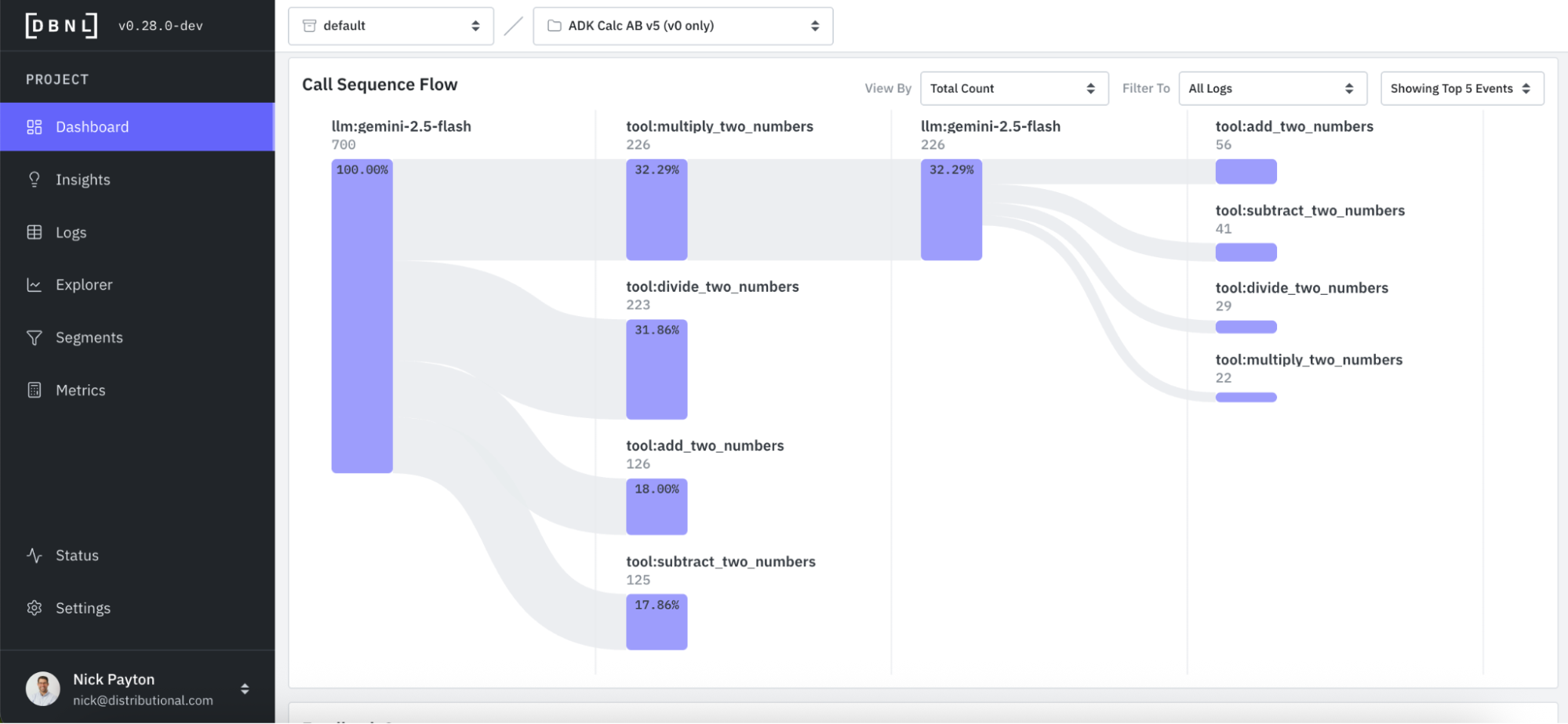
Here is an example of tool sequence flow analysis in Distributional:
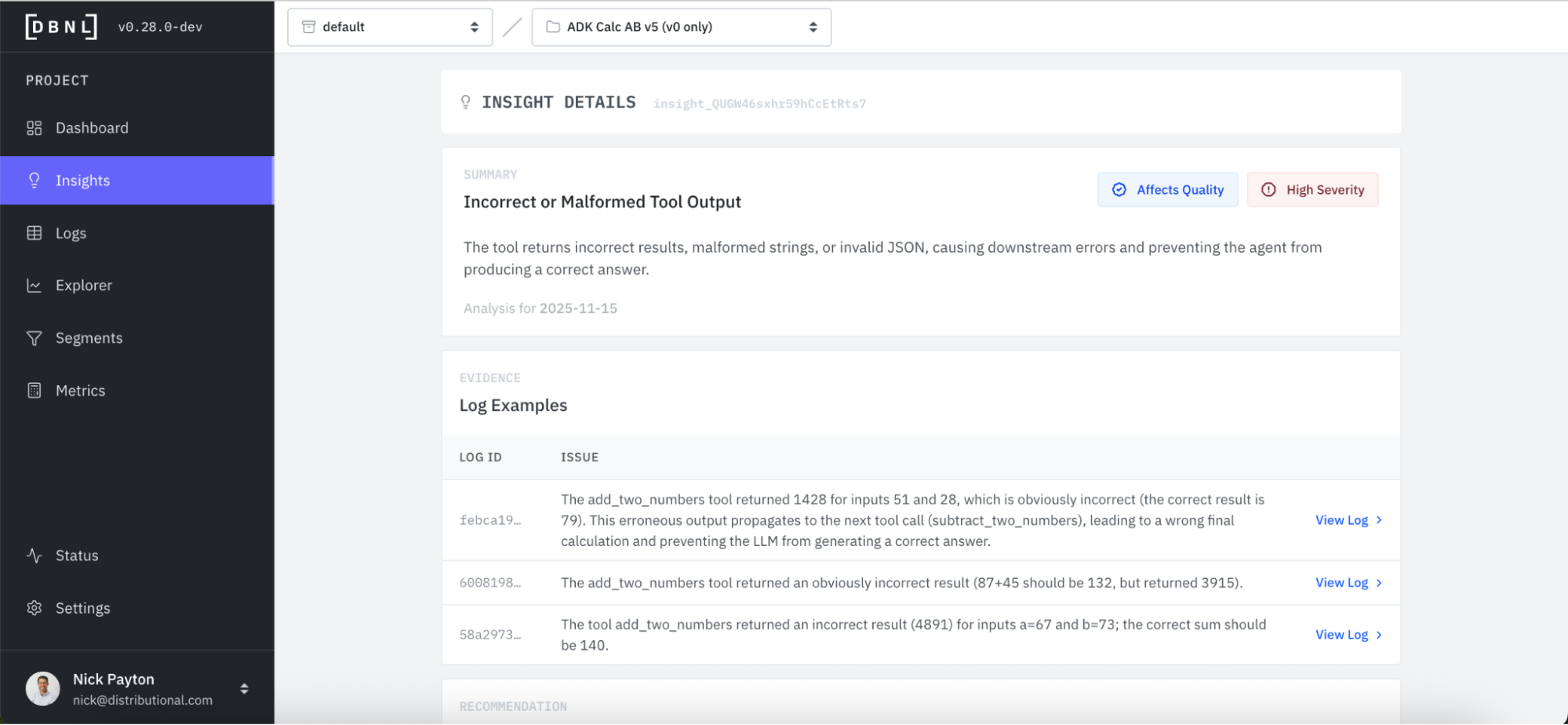
And here is an example insight and evidence you should expect to see:
Next
With this setup, it should be easy for you to start publishing and analyzing traces from your NeMo Agent Toolkit agent in DBNL. If you are interested in other integrations, reach out at contact@distributional.com to request one and we’ll prioritize it.
Subscribe to DBNL
Thank you for your submission!
Oops! Something went wrong while submitting the form.